Release Management System (RMS)
What is the RMS?
Every 6c and 8c that is running firmware r1.4 or later releases is equipped with the Release Management System (RMS). The RMS has two main functions:
Download and install new firmware
Create and restore back-ups of installed firmware and user settings
Please be aware that, although the RMS is a 'conservative' piece of software, it still receives updates from time to time. This documentation was made for RMS version 3.0.24 and may contain outdated parts.
Where do I find the RMS?
The RMS runs as an independent system and therefore has its own user interface (UI). It is a website that is hosted on the 8c itself and which you can access by browsing to port 10000 of your 8c system. Depending on your local router settings, one of the following URLs should work (replace "8c-1234" with your products' serial number).
When the UI is first loaded, it will attempt to connect to the actual RMS running on your 8c. If a connection can not be made, the UI will go to an error view and automatically retry in 30s. After the connection has been made, the main view is shown.
What information does the RMS show?
The main view has three sections, of which System information is the first. It shows your system's serial number and firmware version and has a dropdown where you can enable or disable automatic updates. By default, automatic updates are disabled.
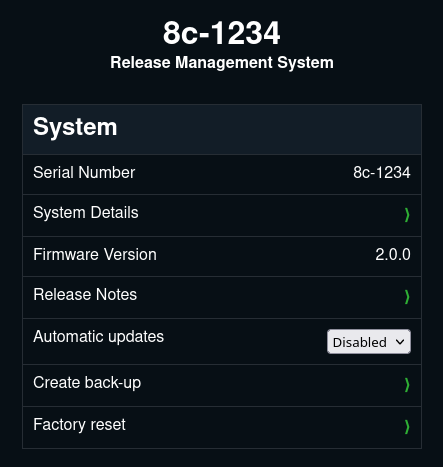
First section of main view, System Information
It also features items that have a green chevron icon on the right, which lead to another view when clicked. The System Details view shows the serial number, product type, version of the operating system and version of the RMS itself.
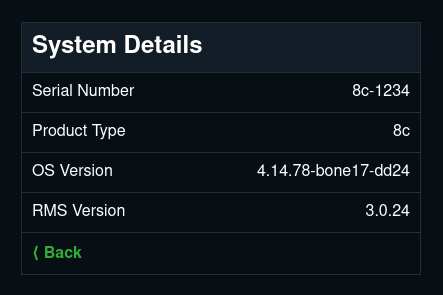
System Details view
The Release Notes view shows the description and notes belonging to the currently installed release.
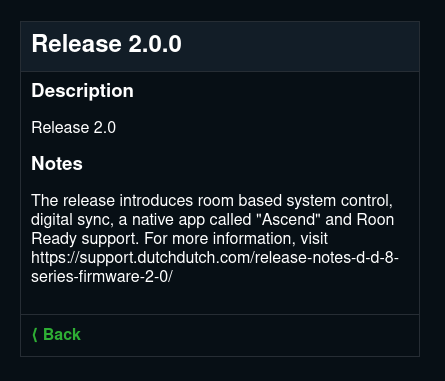
Release Notes view
If you toggle the Automatic updates dropdown and set it to enabled, the RMS will periodically check for new firmware updates and make sure the latest available version is installed on the system at all times. This excludes Major Version upgrades; these always have to be done manually.
To give an example: when automatic updates are enabled, an update from 2.0.0 to 2.1.5 would be installed automatically, but an update to 3.0.0 would have to be triggered manually.
The website will ask for confirmation before applying this setting.
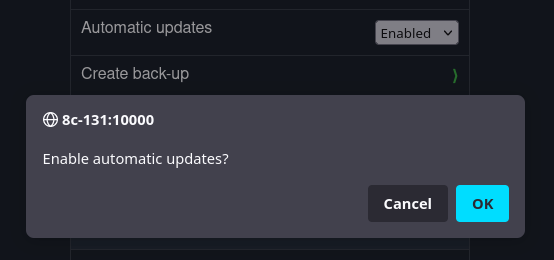
Automatic updates confirmation dialog
The remaining two options, 'Create back-up' and 'Factory reset' are discussed below, in their relevant sections.
How do I install new firmware
The second section lists the available releases your 8c can install. Note that, if you are running room based software (r2.0 and up), all 8c's in a room should be running the same firmware version. RMS checks periodically for updates to this list. You can also trigger this check manually, by clicking the green, circular arrow icon in the upper right corner.
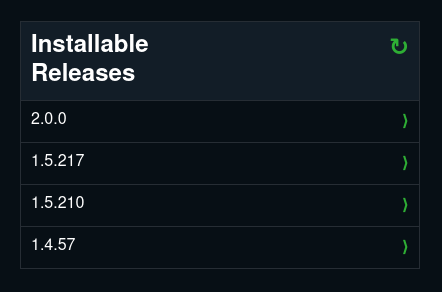
List of installable releases
Click one of the release versions to go to the release view, where its description and notes are displayed. Click the green "Install" button in the lower right corner to proceed with installation.
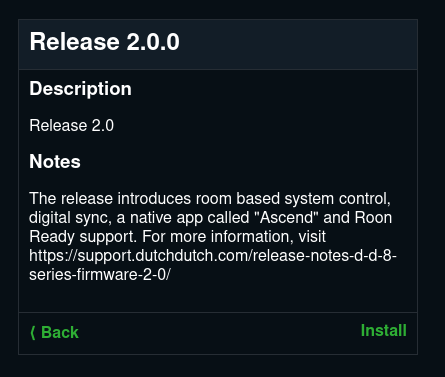
Release view with install button
When you install a release that is older than the one that is running, your user settings will not be migrated. RMS will display a warning about this.
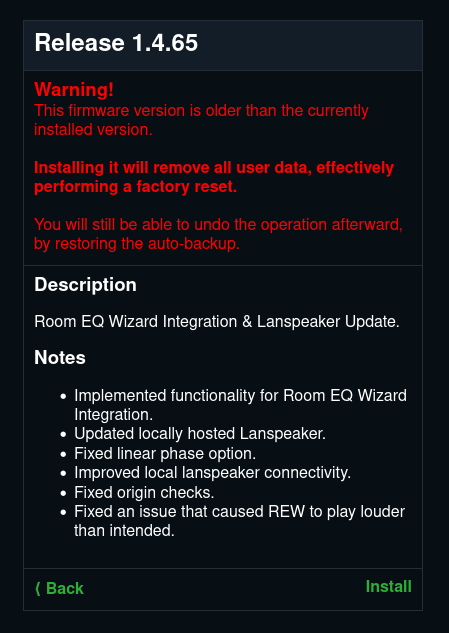
Release view with downgrade warning
After clicking install, RMS will ask you to confirm..
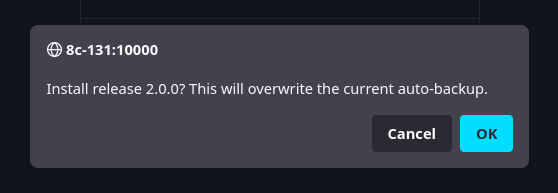
..and then proceed with the installation. Every time an installation is done, RMS will create an automatic back-up of the current system. In the example below, the system went from r1.4 to r2.0. This is considered a Major Upgrade, which is why RMS creates an extra backup. The regular automatic back-up will be overwritten on the next install, but the Major Upgrade automatic back-up will be saved until the next Major Upgrade, perhaps to r3.0 somewhere in the future. This way, you are always able to return to the previous major version release.
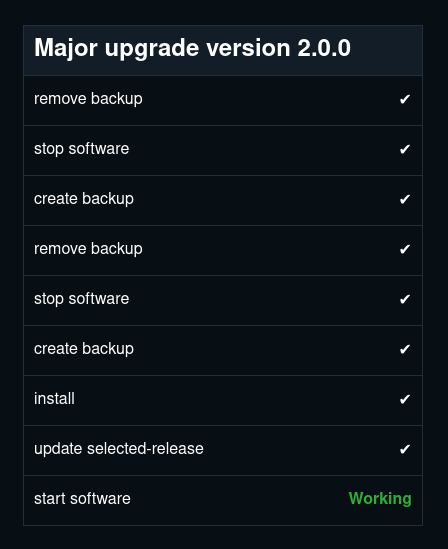
Operation view, major upgrade
For a regular upgrade, the view looks like this:
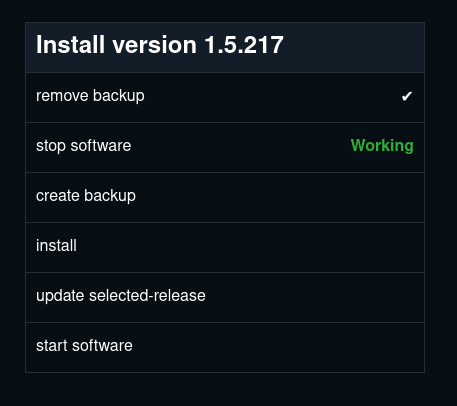
Operation view, regular update
When the installation is finished, RMS will go back to the main view and confirm completion with a pop-up.
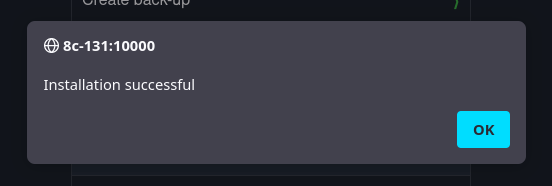
Confirmation of the successful installation
How do I create and restore back-ups of my system?
A back-up is a saved copy of a running system. It contains a copy of both a firmware release and all the user data at a certain point in time. The 8-series products have five back-up slots, of which two are reserved for automatic back-ups. This means that you can create and keep three back-ups of previously running systems.
Creating a back-up
Click the 'Create back-up' item in the upper section of the main view. RMS will first check whether a free slot is available. If all slots have been used, RMS will show the following message.
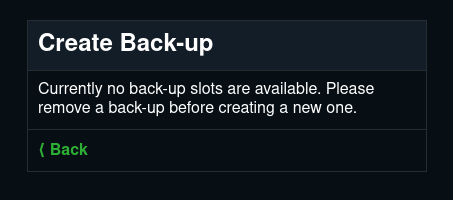
No back-up slots available
If a free slot is still available, RMS will show the Create Back-up view. Here you can enter a name and a description for the back-up.
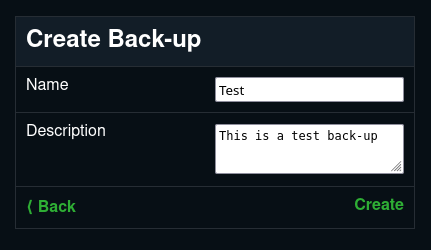
Create back-up view
After clicking 'Create' in the lower right corner, RMS will go to the operation view, where you can track the subsequent steps.
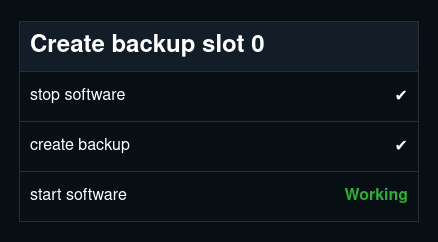
Operation view, creating a back-up
When the operation is complete, RMS will go back to the main view and show a confirmation.
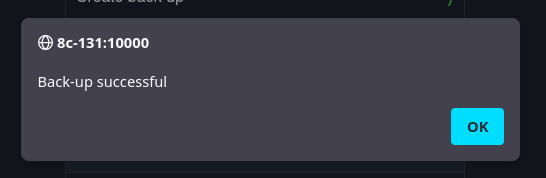
Confirmation of a successful back-up
The new back-up is now visible in the list on the main view.
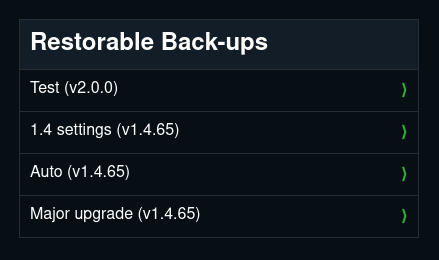
Main view back-up list
Click the backup to see more detailed information about it.
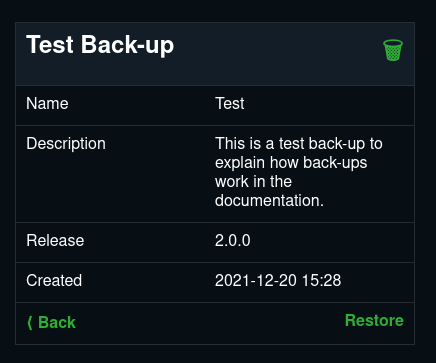
Back-up detail view
To remove a back-up, click the green trash can icon in the upper right corner. RMS will ask for confirmation.
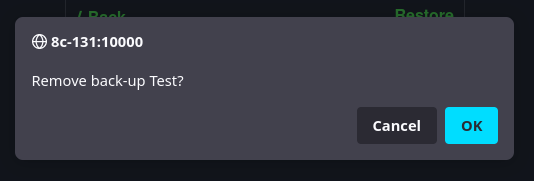
Back-up removal confirmation dialog
And finally, show a success pop-up when the operation is finished. This is a very fast process, which is why you may not be able to see the operation view.
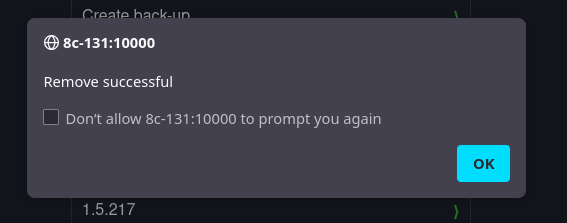
Confirmation pop-up for successful back-up deletion
Automatic back-ups
Every time firmware is installed on your system, RMS automatically creates a back-up called 'auto'. If a previous auto back-up exists, it is overwritten by the new one. Clicking the 'auto' back-up entry in the list shows when it was created and which firmware version it contains. The automatic back-up can not be deleted and trying to do so will result in an error.
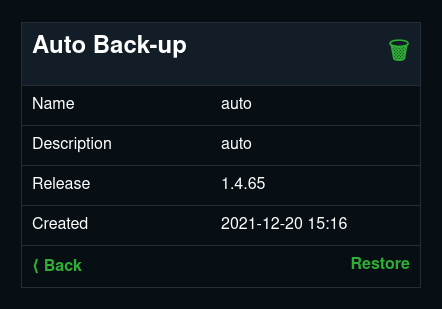
Auto Back-up details
Besides the regular automatic back-up, RMS creates a Major Upgrade automatic back-up whenever a major upgrade is done. This back-up is not overwritten by the regular automatic back-ups, but only by the next Major Upgrade automatic back-up.
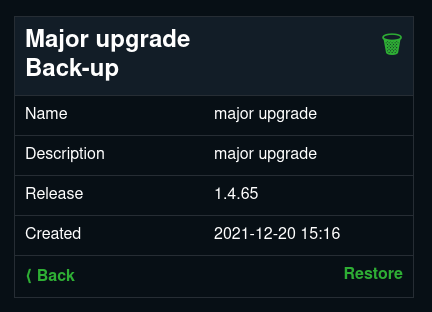
Major Upgrade Back-up details
How do I perform a factory reset
RMS allows performing a soft reset. It will remove all user settings from the currently installed firmware and restore the factory defaults. The firmware itself will remain installed. Any back-ups you have created will remain untouched. Please note that, if you are running room based firmware (r2.0 and up), you should reset all the 8c's on your network for the operation to have effect. The correct way to do that is as follows.
Turn off all the 8c's on your network
For each 8c: Turn on ⇾ Perform the reset ⇾ Turn off
Turn on all the 8c's again
To perform a reset on an 8c, open the Factory Reset view (click the Factory reset item in the first section of the main view). Click "Reset" in the lower right corner and "OK" in the confirmation dialog.
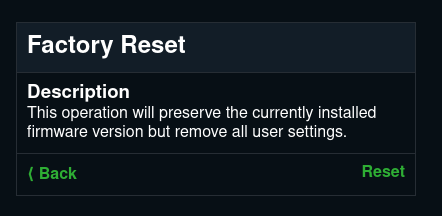
Factory reset view
After clicking Reset, RMS will ask you to confirm.
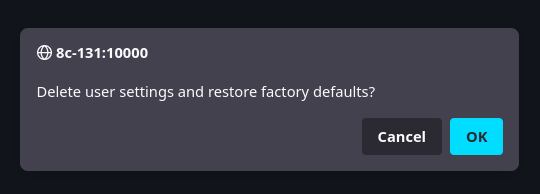
Factory reset confirmation dialog
And finally confirm that the reset was successful.
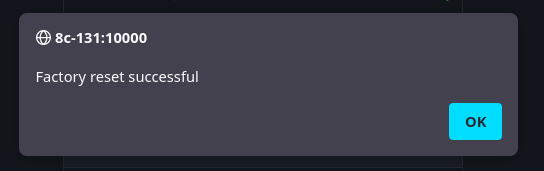
Confirmation of the successful factory reset.
Troubleshooting
RMS page cannot be found
If the RMS cannot connect to your speakers and repeatedly shows a green error page then check that your firewall allows traffic to/from port 10000. Some firewalls, such as the one included with AVG antivirus, block this port under the default settings.