Analog
8c Gain Structure
The 8c speaker system has one input that can be used for either AES3 digital audio or for an analogue signal. There are several parameters that can be adjusted to achieve the best signal to noise ratio for your setup.
Verifying the output level of your source
First of all you need to identify if your source or mixing desk has a +4dBu (professional) output or a -10dBV (consumer) output. You can verify this using the manual of your audio source or mixing desk. Once you have verified this you can select the matching input level of the 8c system using the button at the back or the lanspeaker.com app.
General gain settings in LanSpeaker.com
As a default the gain of every 8c speaker system is set to 0dB. In normal conditions you do not need to increase or decrease this level. You can however decrease the gain setting to get a better signal to noise ratio. This is only possible if your source can output sufficiently loud or when a lower output level of the 8c system is acceptable. You can also increase the gain setting to above 0dB. This is only needed if your source cannot output at sufficiently high levels in order to reach extreme audio volume. Please note that increasing the gain above 0dB will affect signal to noise levels
Analog signal with a professional setup
If you have a professional mixing desk or D/A converter you need to select the +4dBu input of the 8c speaker system. This will now match the output of your desk or converter. Please check the manual of your desk or converter to ensure that this equipment also outputs at +4dBu. In the lanspeaker.com app you can also set the gain setting per speaker. The default should be 0dB since this now also matches the gain of your desk or converter.
Analog signal with a consumer setup
Consumer equipment output audio signals at a lower level than professional equipment. To make sure your 8c speaker system can play sufficiently loud you need to select the -10dBV input. In the lanspeaker.com app you can also set the gain setting per speaker. The default should be 0dB in order to match the output levels of your source to the input gain of the -10dBV input.
AES signals
You can use the input of the 8c speaker to play a digital AES3 signal from your source. The 8c accepts a maximum frequency of 192kHz. Also, you can use the thru XLR chassis connector output to daisy chain the first 8c speaker to the second 8c speaker. Every set of 8c speakers is shipped with an XLR terminator. You need to plug this connector in the thru chassis connector output of the second 8c.
You can select the required input mode using the small button at the back of each 8c or using the lanspeaker.com app. You can select if each 8c uses the left signal or the right signal from the AES3 stream. You can also select both. In this case the left and right signal will be summed and you will listen to a mono signal from that 8c speaker. Please note that the 8c does not accept a coded multichannel (surround) audio feed.
Analog inputs and a proper gain structure for the best signal-to-noise ratio
Noise is unwanted sound in your signal, such a low-level hiss and hum that are inherent to electronic circuitry. By setting up a proper gain-structure you minimize noise by amplifying it as little as possible, but still leaving enough headroom for the loudest peaks in the signal. With the 8c's this is mainly an issue if you're using the analog input, no so much if you're streaming or using the AES3 input.
XLR input settings
You can find the Input Gain settings in the Ascend app by clicking on the cog icon in the top right corner of the home screen, then click on the input for which you’d like to adjust the gain (XLR, Roon Ready or Spotify Connect). Click on the XLR input settings and you'll get the following overview of available settings:
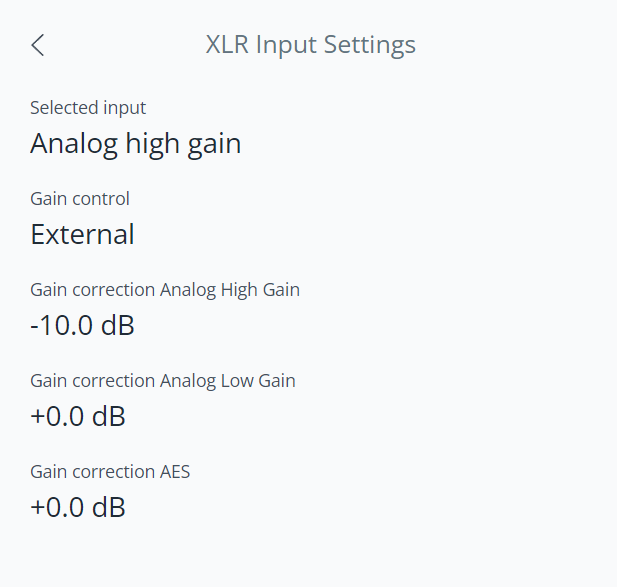
The Analog Low Gain input has a low internal gain and is intended for high-power signal sources such as mixing desks and some audio interfaces that are capable of output signals in the range of up to 22 dBu. In all other circumstances, both domestic and studio, we recommend the use of the Analog High Gain input. This input has almost 12 dB higher internal gain than the Analog Low Gain input, which ensures you'll get sufficient output from the 8c's with a wide range of sources. For more information about source inputs, please check out this article about audio inputs.
Besides the input (AES, Analog High Gain, Analog Low Gain) you can choose to use an external volume control, or volume control in the app. Select the external volume control is you wish to adjust the volume of the XLR input in the source, rather than in the 8c’s themselves. By turning on this feature, the main volume control on the home screen of the Ascend app will be fixed at 0 dB. Please make sure to turn down the volume of the source before you activate external volume control.
If you're using an external volume control and you notice you're getting sufficiently high volume levels even if the volume control in the source isn't turned up much, it is recommended to turn down the gain correction for the XLR source input. This way you'll improve the signal-to-noise ratio and you'll be able to use more of the range of the volume control in the source, which will improve volume control precision. A gain correction setting of - 10 dB is often a good starting point. Do you want to control the volume in the 8c's themselves, then turn the source's volume all the way up, to just below the point of clipping. This ensures the best signal-to-noise ratio.
Be careful with turning the gain in the Dutch & Dutch Ascend app to higher than 0 dB. When the gain in Ascend is set at 0 dB and there is no input signal, the noise should be at least 118 dB down. With every dB of gain you add, you don't only increase the level of the signal, but also of the noise. If you need more loudness, first see if you can increase the gain earlier in the chain before you increase the level at the last stage.